
1 Month Subscription
One-time · 1 month
- One-time payment
- 20,000+ live channels
- 90,000+ movies & series
- Anti-buffering servers
- TV guide (EPG)
- Instant activation
- 24/7 chat support
MAG set-top boxes don't use a username and password like phone apps. Instead, your provider registers the box's MAC address and gives you a portal URL. We support MAG boxes: send us your MAC address, add the portal in the box's settings, restart, and your channels load with a full TV guide.
 Portal setup
Every MAG box has a unique MAC address, printed on the label underneath and shown in its settings. When you subscribe, you send us that MAC address. We link it to your plan and send you a portal URL. Enter the portal in the box's settings, restart it, and the box signs in automatically. No username or password to type with the remote.
No app to install and no password to type: a MAG box signs in with its MAC address and a portal URL. Have the box connected to your TV and router before you start.
Turn the box over. The sticker lists the MAC address: twelve characters in pairs, starting with 00:1A:79 on MAG boxes.
The MAC address also appears on screen while the box starts up, and in the settings under Device info (called About on some models).
Choose your plan, then send the MAC address through our contact form, which opens with a MAG request ready to finish. We register the box and email your portal URL, usually within minutes.
Press SET (or SETUP) on the remote, or select Settings on the home screen, then open System settings.
Inside System settings, choose Servers, then Portals.
In Portal 1 name, type any label, such as Living Room. In Portal 1 URL, type the address from our email exactly, including http:// at the start and any ending such as /c/.
Use the remote's number keys for digits and the keyboard key to switch between letters and symbols. One wrong character stops the portal loading.
Press OK to save the portal, then EXIT to step back to the main settings screen.
In Servers → General, enter pool.ntp.org in the NTP server field. The box then keeps exact time, which keeps the TV guide accurate.
On the main settings screen, choose Restart portal (or Reboot device). Unplugging the box for ten seconds works too.
The portal loads by itself with live channels, the guide and on-demand sections. From now on, the box opens straight into it every time you switch it on.
Screens are illustrations, not captures of the MAG interface. Menu names differ slightly between models and software versions; our support team can walk you through yours.
| What you see | Likely cause | Fix |
|---|---|---|
| A message saying the box is blocked or not authorized | The MAC address isn't registered yet, or was sent with a typo | Check the label again and send us a photo of it. We'll correct it and you restart the portal. |
| Stuck on the loading screen | A typo in the portal URL, or no internet connection | Re-enter the URL with http:// and the ending exactly as emailed, and check the network cable. |
| Guide times are an hour or more off | The box's clock or time zone is wrong | Add pool.ntp.org as the NTP server and check the time zone in system settings. |
| Menus feel slow after weeks of use | The box has been on for a long time | Reboot it. A weekly restart keeps older models responsive. |
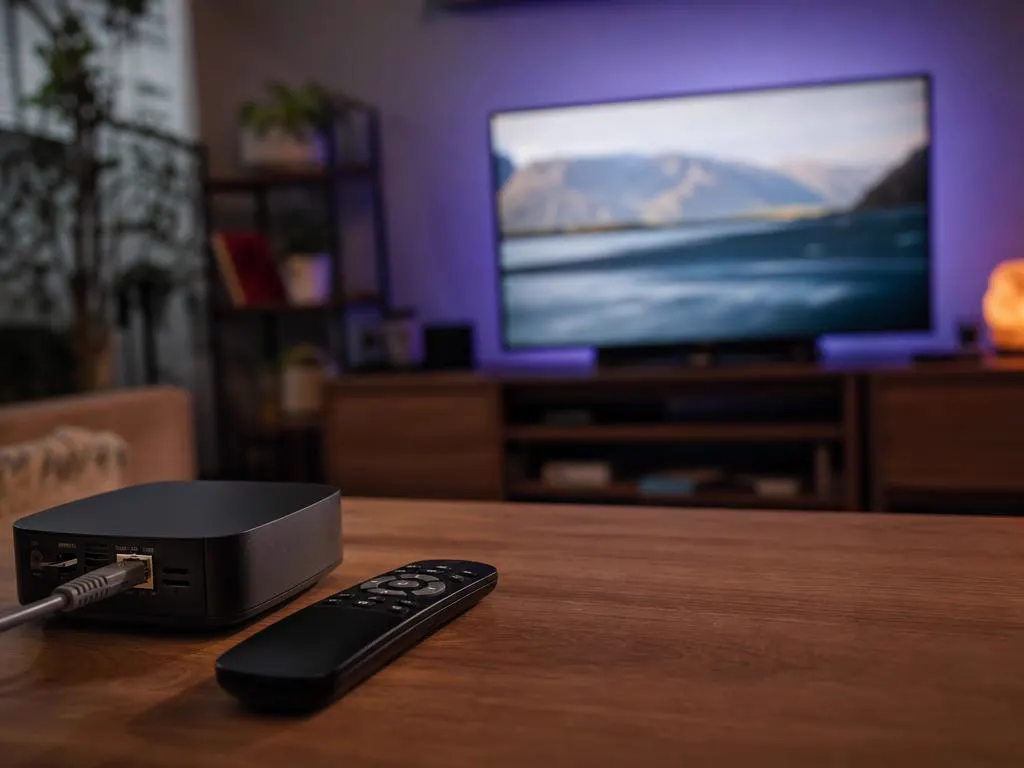
MAG boxes are built for living-room TV: simple remotes, fast channel switching and a cable-style guide. A few habits keep them running smoothly.

MAG boxes suit viewers who want a simple, cable-like experience. Android TV boxes run apps such as IPTV Smarters Pro and also handle streaming apps. Formuler boxes sit in between, with a built-in live TV player plus Android apps (see our Formuler guide). All of them work with our service, so you can mix them around the house.
IPTV for Android boxChoose how many devices will watch at once, then your plan length. Send us your MAC address after checkout.
1 Month Subscription
One-time · 1 month
3 Months Subscription
One-time · 3 months$8.67/mo
6 Months Subscription
One-time · 6 months$6.50/mo
12 Months Subscription
One-time · 12 months$5.75/mo
1 Month Subscription
One-time · 1 month
3 Months Subscription
One-time · 3 months$12.00/mo
6 Months Subscription
One-time · 6 months$11.50/mo
12 Months Subscription
One-time · 12 months$9.92/mo
1 Month Subscription
One-time · 1 month
3 Months Subscription
One-time · 3 months$15.33/mo
6 Months Subscription
One-time · 6 months$14.83/mo
12 Months Subscription
One-time · 12 months$12.42/mo
1 Month Subscription
One-time · 1 month
3 Months Subscription
One-time · 3 months$18.67/mo
6 Months Subscription
One-time · 6 months$19.83/mo
12 Months Subscription
One-time · 12 months$14.08/mo
Secure checkout · One-time payment, no contract · Login details by email in minutes

Simple for everyone.
Like cable, without the cable.

No logins to type.
Choose a plan, send us your MAC address and we'll email your portal URL so your box is watching in minutes.

This website is operated by an independent IPTV provider and is not affiliated with Infomir, the maker of MAG devices, or with WHMCS Smarters, the developer of IPTV Smarters Pro. MAG is a trademark of its owner. Menu names vary by model and software.