
1 Month Subscription
One-time · 1 month
- One-time payment
- 20,000+ live channels
- 90,000+ movies & series
- Anti-buffering servers
- TV guide (EPG)
- Instant activation
- 24/7 chat support
Hisense sells TVs with four different systems: VIDAA, Google TV, Roku TV and Fire TV. Setting up IPTV on Hisense TV starts with knowing which one yours runs. This guide shows how to tell in ten seconds, then walks through the VIDAA store route and the streaming-stick route step by step.
 Hisense ready
Yes. Hisense models running Google TV install IPTV Smarters Pro straight from Google Play. Models running VIDAA, Hisense's own system, offer a smaller choice of IPTV players in the VIDAA store, which varies by country. For any Hisense with an HDMI port, a Fire TV or Android TV stick gives you the full IPTV Smarters Pro app.
Press Home on the remote and compare what you see.
| If your home screen shows | Your TV runs | Follow |
|---|---|---|
| Tabs such as For You, Live and Apps | Google TV or Android TV | IPTV Smarters Pro for Android TV |
| A grid of tiles with a menu on the left | Roku TV | IPTV for Roku |
| A top menu with Home, Find and Live | Fire TV | The Firestick guide (same steps) |
| Hisense's own home bar with Apps and Inputs | VIDAA | The walkthrough below |
For VIDAA models. Keep your activation email open on your phone for Part 2.
Open Settings → Support → System Update (under System on some models) and install any update. Newer software brings more apps to the store.
Press Home and open the app store, called VIDAA Store on recent models.
Search for IPTV and open the players listed. Pick one whose description mentions Xtream Codes or M3U support.
Choice varies by country. If nothing suitable is listed, skip to Part 3.
Select Install, wait a few seconds, then open the player from the store page or your Apps row.
If the player shows login fields, enter a name, the server URL, your username and your password exactly as they appear in your email.
Player shows a MAC address or device key instead? It uses web activation: follow Part 2 of our smart TV guide.
Save and give the player a minute to load your lists. Then open the guide, and set the TV clock to automatic if the times look wrong.
The most complete way to get IPTV on Hisense TV models with VIDAA, and it works on every TV with HDMI.
Connect a Fire TV or Android TV stick to a free HDMI port and plug its power cable in.
In the TV's settings, switch on CEC (often listed as CEC Function under the HDMI or device connection settings). The Hisense remote can then control the stick and switch inputs by itself.
Follow our Firestick walkthrough or the Android TV guide, then sign in with the same details.
Screens are illustrations, not captures of VIDAA or any player. Menu names vary by model, year and country.
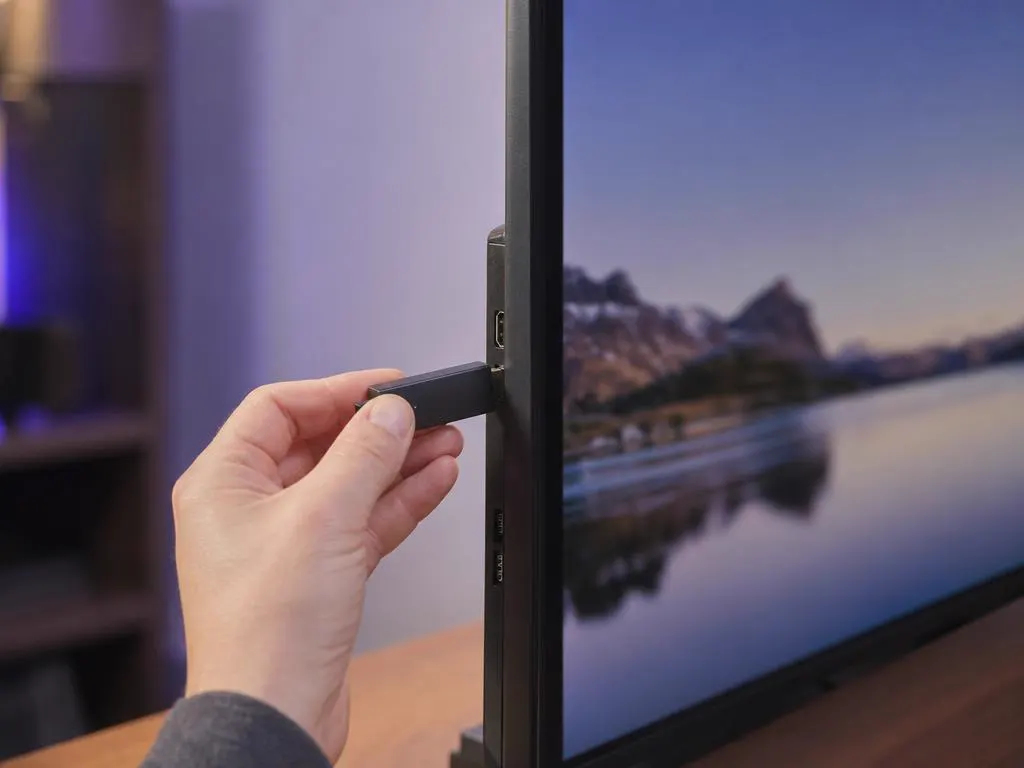
Store players on VIDAA are improving, but a stick gives you the full IPTV Smarters Pro app, faster menus and the same interface as your phone. It also keeps working when you replace the TV.
Xtream Codes details for a store player, a stick or any other screen in the house. One-time payment.
1 Month Subscription
One-time · 1 month
3 Months Subscription
One-time · 3 months$8.67/mo
6 Months Subscription
One-time · 6 months$6.50/mo
12 Months Subscription
One-time · 12 months$5.75/mo
1 Month Subscription
One-time · 1 month
3 Months Subscription
One-time · 3 months$12.00/mo
6 Months Subscription
One-time · 6 months$11.50/mo
12 Months Subscription
One-time · 12 months$9.92/mo
1 Month Subscription
One-time · 1 month
3 Months Subscription
One-time · 3 months$15.33/mo
6 Months Subscription
One-time · 6 months$14.83/mo
12 Months Subscription
One-time · 12 months$12.42/mo
1 Month Subscription
One-time · 1 month
3 Months Subscription
One-time · 3 months$18.67/mo
6 Months Subscription
One-time · 6 months$19.83/mo
12 Months Subscription
One-time · 12 months$14.08/mo
Secure checkout · One-time payment, no contract · Login details by email in minutes

Live sports on the biggest screen in the house.
Lock adult categories with a PIN.
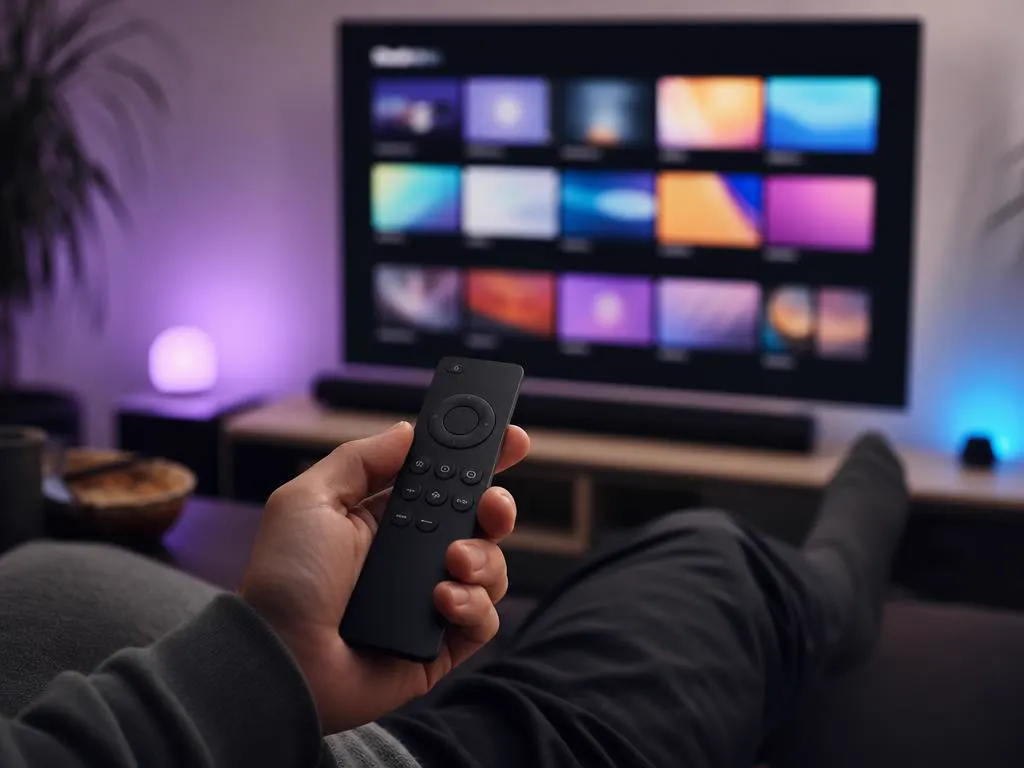
VIDAA's app choice keeps growing.
Get Xtream Codes details by email in minutes and stream live TV, sports and movies in HD and 4K.

This website is operated by an independent IPTV provider and is not affiliated with Hisense, VIDAA, Google, Roku, Amazon or WHMCS Smarters. All trademarks belong to their owners. App availability varies by model and country.