
1 Month Subscription
One-time · 1 month
- One-time payment
- 20,000+ live channels
- 90,000+ movies & series
- Anti-buffering servers
- TV guide (EPG)
- Instant activation
- 24/7 chat support
Pick your device below and follow an illustrated walkthrough from the first click to your first live channel. Learning how to set up IPTV takes about ten minutes on most screens, and every guide uses the login details from your activation email.
 Every device
Every setup follows the same pattern. First, install a player app on your device, or open the portal built into a set-top box. Second, sign in with the Xtream Codes details from your activation email: a username, a password and a server URL. Third, load the TV guide and pick a channel. Only the menus change from one device to the next, and the guides below show each of them.
Five minutes of preparation saves most of the frustration people run into. Before you look at how to set up IPTV on a specific device, check that you have these three things.
No plan yet? A free trial lets you test the setup on your own device first.
Each guide walks through the real menus with illustrated screens, plus the settings that make playback smoother.
Downloader install, sign-in and the TV guide in 20 illustrated steps.
Open guideGoogle Play install, Xtream Codes sign-in and favorites.
Open guideInstall on the TV itself and type your login with the remote.
Open guideSmarters Player Lite from the App Store, signed in by copy and paste.
Open guideApp Store install with your iPhone as the keyboard, plus picture settings.
Open guideSamsung Apps install, or a streaming stick when the app isn't listed.
Open guideContent Store install with the Magic Remote, plus the stick option.
Open guideVIDAA store players, Google TV models and the stick route.
Open guideMAC-address player apps, from activation to the first channel.
Open guideXtream Codes or portal sign-in in the built-in player app.
Open guideMAC registration, portal URL, time server and restart.
Open guideWhat works on Roku today and the simplest workaround.
Open guideDesktop app install and sign-in, or VLC with an M3U link.
Open guideSmarters Player Lite on Apple silicon, desktop build on Intel.
Open guideAdd your Xtream Codes login to TiviMate on Android TV.
Open guideWatch in a browser when your provider offers a web player.
Open guideNot sure which app suits your screen? These guides compare the options for each device before you learn how to set up IPTV on it.
Whichever device you use, the sign-in screen looks much like this. Here's what goes where.
A label you choose, so you can tell profiles apart. It doesn't affect the connection.
From your activation email. It's case-sensitive, so Abc and abc are different.
Also case-sensitive. Copy and paste it where you can, and check for a stray space at the end.
Starts with http:// and usually ends with a colon and a port number. Some apps call it the host or server address.
Have only an M3U link? Our M3U to Xtream converter splits it into these fields in one click.
Your activation email works with all three. The device decides which one you use.
| Login type | What you enter | Used by |
|---|---|---|
| Xtream Codes | Username, password and server URL | IPTV Smarters Pro, Smarters Player Lite, TiviMate, Formuler boxes and most player apps |
| M3U link | One long web address | VLC and players without an Xtream Codes option |
| MAC address + portal | Nothing to type on the TV: we register the box | MAG boxes, Formuler portal mode and many smart TV player apps |
Not sure which one your device needs? The device guides above say so in their first step.
Most problems after setup are network problems, not app problems. A few minutes here means smooth live sports later, on every device in the house.
| What you see | Likely cause | Fix |
|---|---|---|
| Invalid username or password | A typo, a wrong capital letter or a trailing space | Type the details again, or paste them and delete any space at the end. |
| Can't connect to the server | The URL is missing http:// or its port number | Copy the server URL exactly as it appears in your activation email. |
| Channels load but the guide is empty | The guide hasn't been downloaded yet | Use the app's guide refresh option and check the device's time zone. |
| Buffering on every channel | Weak Wi-Fi or a slow connection | Try Ethernet or 5 GHz Wi-Fi, then follow our buffering guide. |
| The app isn't in my TV's store | Store listings vary by model and country | Add a streaming stick to a spare HDMI port; see the Firestick guide. |
Choose how many screens watch at once, then your plan length. Details by email in minutes.
1 Month Subscription
One-time · 1 month
3 Months Subscription
One-time · 3 months$8.67/mo
6 Months Subscription
One-time · 6 months$6.50/mo
12 Months Subscription
One-time · 12 months$5.75/mo
1 Month Subscription
One-time · 1 month
3 Months Subscription
One-time · 3 months$12.00/mo
6 Months Subscription
One-time · 6 months$11.50/mo
12 Months Subscription
One-time · 12 months$9.92/mo
1 Month Subscription
One-time · 1 month
3 Months Subscription
One-time · 3 months$15.33/mo
6 Months Subscription
One-time · 6 months$14.83/mo
12 Months Subscription
One-time · 12 months$12.42/mo
1 Month Subscription
One-time · 1 month
3 Months Subscription
One-time · 3 months$18.67/mo
6 Months Subscription
One-time · 6 months$19.83/mo
12 Months Subscription
One-time · 12 months$14.08/mo
Secure checkout · One-time payment, no contract · Login details by email in minutes
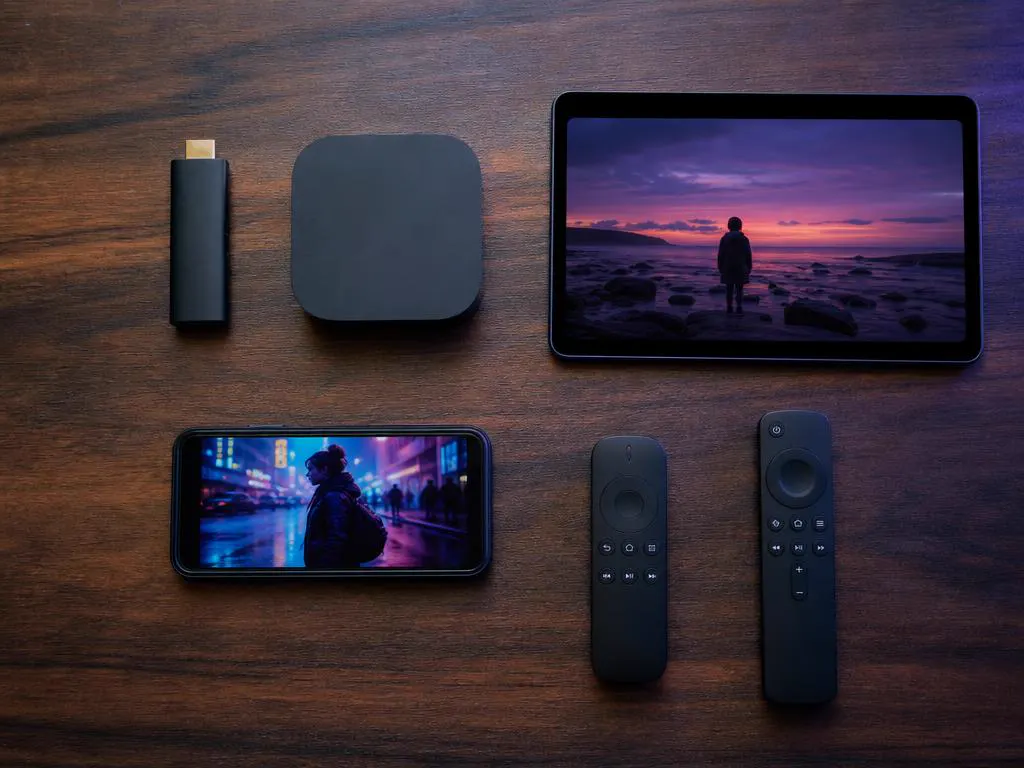
Sticks, boxes, phones, tablets and TVs.
Every guide works with a standard remote.
Choose a plan and your Xtream Codes details arrive by email in minutes, ready for whichever guide you follow.

This website is operated by an independent IPTV provider and is not affiliated with Amazon, Apple, Google, Samsung, LG, Hisense, Formuler, Infomir, Roku or WHMCS Smarters. All trademarks belong to their owners. App availability varies by device and region.